
technical how to
How to Convert Word Documents to Markdown Without Losing Structure
Prepare DOCX styles, map document semantics, and review tables, images, revisions and notes when converting Word to Markdown.
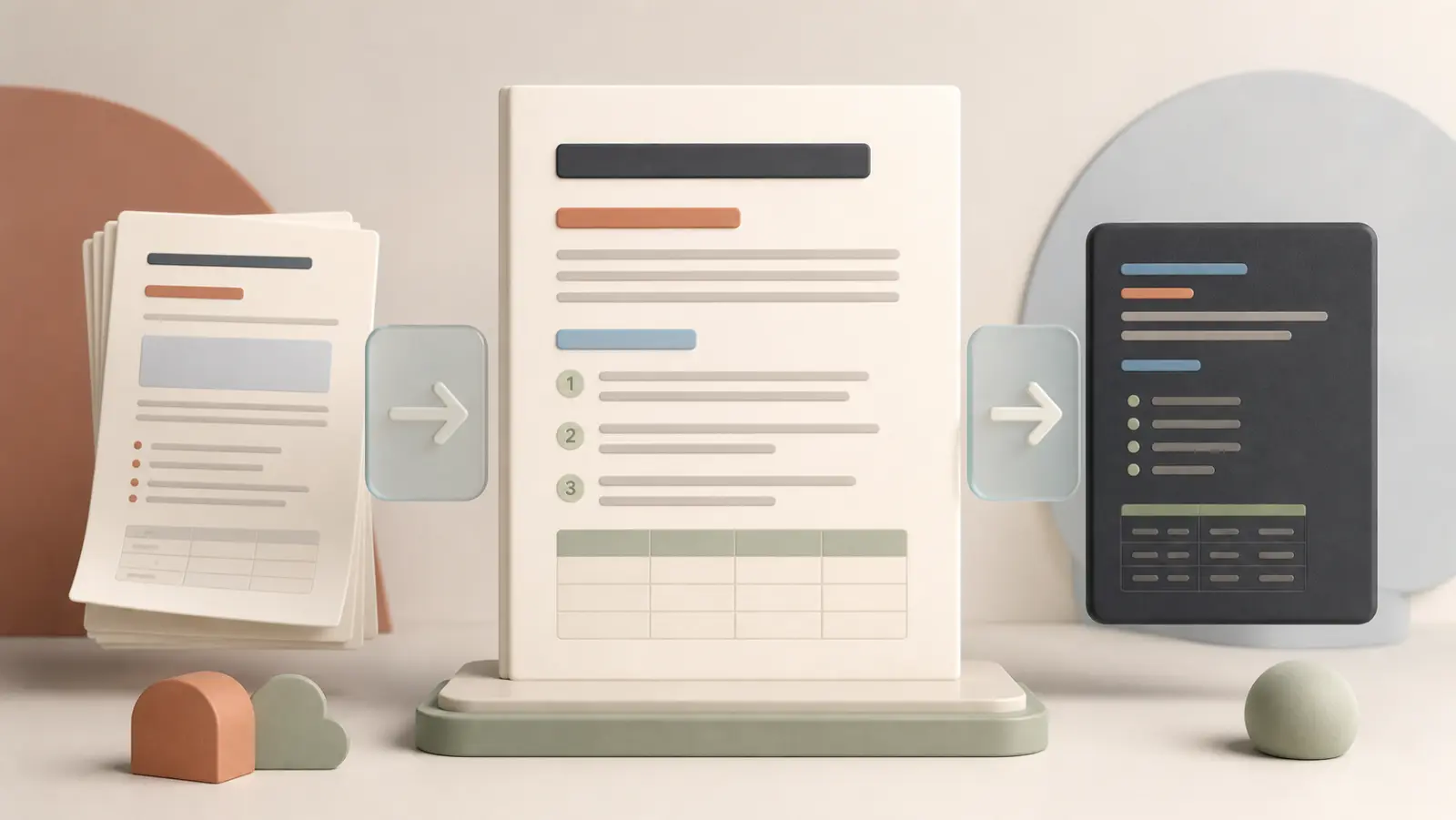
The most reliable DOCX-to-Markdown conversion starts in Word: use real heading and list styles, resolve revisions, and simplify layout that has no Markdown equivalent. A converter can map document semantics well; it cannot infer them consistently from font size, bold text and page positioning alone. The goal is a readable, reviewable document—not a replica of Word pages.
Start with the Word to Markdown tool.
What is the best way to convert Word documents to Markdown?
Prepare the final DOCX, apply semantic styles, identify content that needs a fallback, convert a representative section, and compare the Markdown with the source before batch processing. Keep the .docx alongside the Markdown whenever layout, comments, revisions, advanced tables, images or citations are significant. This keeps the text portable without discarding the source evidence.
A DOCX file is an Office Open XML package that stores paragraphs, runs, styles, lists, hyperlinks, tables, comments and revisions as structured data. Microsoft describes the WordprocessingML document structure and the Open XML SDK. Those signals are stronger than a fixed-layout PDF, but only when the document was authored semantically.
Why do Word documents convert differently from PDFs?
Word documents encode editable content and many document relationships. A Heading 2 style can become an H2; a real numbered list can retain nesting; a hyperlink contains a label and destination. A PDF may only describe painted characters at coordinates.
That advantage has limits. A paragraph made visually large and bold is still an ordinary paragraph unless it has a heading style. Floating text boxes, manual tabs, columns and decorative shapes can look meaningful on a page while carrying no portable reading order. Start with the most structured source available, then review the actual output.
How should you prepare a DOCX before conversion?
Resolve revisions and comments
Accept or reject tracked changes when Markdown should represent the final document. Comments, revision history and visible text are separate kinds of data; leaving them unresolved makes it unclear whether inserted or deleted text belongs in the export. Decide separately whether approved comments should become editorial notes, links or be omitted.
Apply real styles
Use Word's Heading 1–6 styles for headings, normal paragraphs for body copy, and built-in list formatting for lists. Map custom styles deliberately when they carry meaning such as Warning, Procedure, Example or Code. This is more reliable than font size, bold weight or manually typed numbering.
Simplify layout that is not content
Columns, text boxes, floating shapes, decorative callouts and page headers do not map directly to portable Markdown. Move essential text into the main flow, turn a complex visual into an image with alt text, or describe it in prose. Save old .doc files as .docx before conversion when possible.
What Word content maps cleanly to Markdown?
| DOCX content | Useful Markdown representation | Review point |
|---|---|---|
| Heading styles | # through ###### |
Correct hierarchy and one title |
| Paragraphs and emphasis | Paragraphs, **bold**, *italic* |
No accidental line breaks |
| Ordered and unordered lists | Numbered and bulleted lists | Nesting and restarted numbering |
| Hyperlinks | [label](url) |
Label and destination match |
| Simple tables | GFM table | Headers and cell alignment |
| Inline images | Image reference plus alt text | Asset path and description |
| Footnotes | Destination-specific syntax or endnotes | Markers and backlinks work |
What needs an explicit fallback?
Markdown cannot fully represent merged or nested tables, page breaks, headers and footers, comments, tracked changes, SmartArt, floating images, form fields or complex equations. Do not silently flatten a meaningful object. Rewrite it as a labelled list, split a table, include a source image with text explanation, use supported HTML only where appropriate, or link to the original DOCX.
Use one decision test: can a reader make the same decision from the Markdown alone? If not, add missing context or make the source available. This is especially important for policy, legal, academic, financial and technical documents.
How should tables, images, notes and citations be reviewed?
Markdown tables require a rectangular grid. Split merged cells, convert a labelled two-column table into a definition-style section, or use prose when the table is primarily layout. Compare header labels, multiline cells, totals, dates and footnote markers directly with Word.
A Markdown image works only when its asset is exported and the path remains valid in the publishing system. Preserve useful alternative text; for charts and diagrams, add a concise description of the evidence or conclusion. Footnotes, endnotes and citations must stay connected to the statement they support. Do not publish a converted note system without checking numbering, targets and source coverage.
A reliable DOCX-to-Markdown workflow
1. Make a final source copy
Resolve revisions, decide the comment policy and record the source version. Avoid converting a document while edits are still being accepted.
2. Audit styles and layout
Check heading hierarchy, lists, hyperlinks, tables, images and unusual objects. Convert visual-only formatting into semantic styles or explicit prose where needed.
3. Test a representative section
Include a table, nested list, image, footnote and one styled warning or callout. Correct mapping rules before converting the entire document.
4. Review structure before copyediting
Check title, headings, paragraphs, lists and reading order first. Then validate links, tables, images, citations and high-risk values.
5. Keep the audit trail
Preserve the DOCX, conversion date and material Markdown repairs in version control. Finish with the converted Markdown review checklist.
Common Word-to-Markdown problems
My headings became normal text
The source likely used visual formatting instead of heading styles. Apply Heading styles in Word and convert again.
My tables are broken
Merged cells and irregular rows do not fit a GFM table. Rewrite the structure, split it into smaller tables, or use a clearer fallback.
Comments or tracked changes appeared unexpectedly
The document was not finalized. Resolve revisions and set a documented policy before exporting Markdown.
Should I use the PDF instead?
Use DOCX when it is available and semantically authored. Use the PDF to Markdown guide only when a page-oriented PDF is the source you have.
Frequently asked questions
Can Word styles become Markdown headings?
Yes, when real Heading styles are used. A font that only looks like a heading needs review or an explicit mapping rule.
Can Markdown preserve comments and revision history?
Not as native Word features. Resolve them first or preserve them as clearly labelled editorial information where appropriate.
Are images and footnotes preserved?
Only after asset paths, note markers and links are verified in the destination. Keep the DOCX for visual and source context.
Is Markdown a replacement for DOCX?
No. Markdown is portable document text; DOCX remains the editable source for advanced layout and Office-specific behavior.
Next step
Create a structured draft with the Word to Markdown tool, then compare it with the source before publishing. Return to the File to Markdown guide for other formats.
References
Continue reading

How to Convert Files to Markdown: A Format-by-Format Guide
Choose the right file-to-Markdown converter, understand what Markdown can preserve, and review the result before reuse.
Read article
How to Convert PDF to Markdown: OCR, Tables, and Reading Order
Convert PDFs to reviewable Markdown by checking text layers, OCR, reading order, tables, and page furniture.
Read article
How to Review Converted Markdown Before Publishing
Use a source-aware checklist to verify structure, data, links, notes, assets and rendering before publishing converted Markdown.
Read article